
Time Tracking Integrations Guide 2026
Your time tracker should talk to your calendar, project tool, payroll, and invoicing system automatically. Here's how to build a zero-re-entry integration stack.
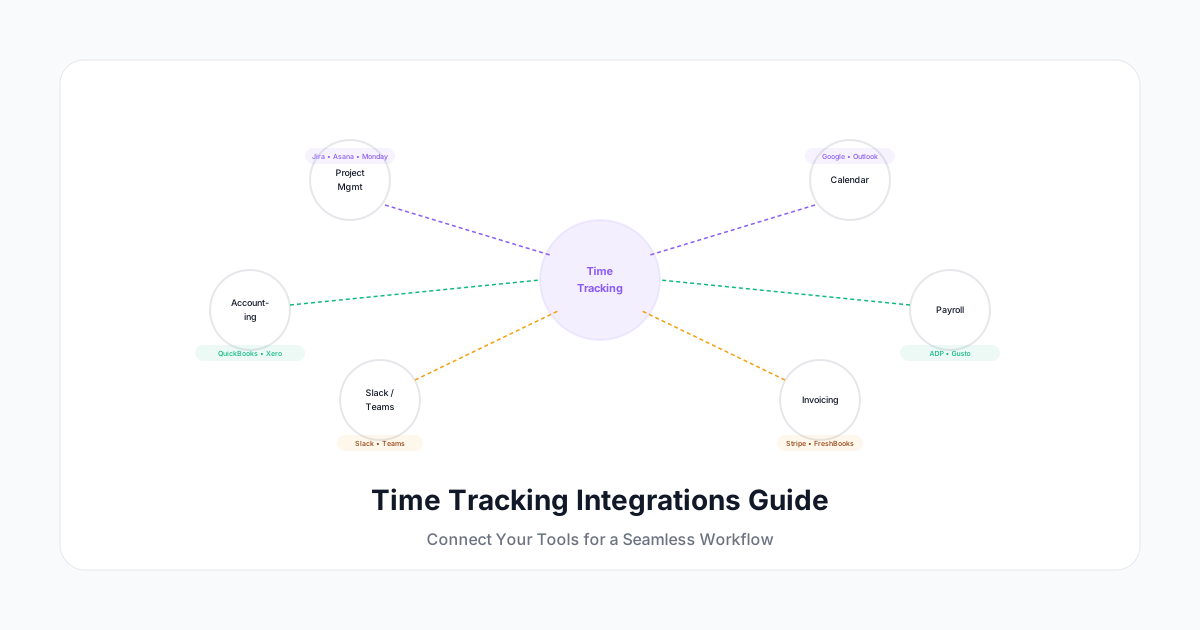
A time tracking tool that doesn't connect to your other systems is just another data silo. You end up manually exporting CSVs, re-entering hours into payroll, copying project allocations into invoices, and reconciling discrepancies between your timer and your project management tool.
The real power of time tracking comes from integration — when your timer talks to your calendar, your project tool, your payroll system, and your invoicing platform automatically. Zero re-entry. Zero reconciliation. One source of truth flowing everywhere it needs to go.
Here's the complete guide to connecting your time tracking system with the tools you already use.
Why Integration Matters
The Re-Entry Tax
Every manual transfer between systems costs:
- Time: 5-15 minutes per transfer, multiple times per week
- Accuracy: Each transfer introduces error opportunities (typos, wrong categories, missed entries)
- Timeliness: Manual transfers happen on someone's schedule, creating delays
- Frustration: Repetitive copy-paste is the lowest-value work anyone does
For a 25-person team, manual time data transfers typically consume 10-20 hours per week across all staff involved. That's a quarter to half of a full-time position.
The Single Source of Truth Principle
Time should be entered once. Then it flows:
- To project management (budget tracking)
- To payroll (compensation)
- To invoicing (client billing)
- To reporting (utilization, capacity)
- To accounting (cost allocation)
If any of these require separate entry or manual transfer, your system is leaking time and introducing errors.
Essential Integration Categories
1. Calendar Integration (Most Important)
What it does: Pulls meetings from your calendar as time entry suggestions.
Why it matters: Calendar events represent 30-50% of most people's workday. Auto-suggesting these as time entries eliminates the most common gap in time tracking (forgotten meetings).
How it works:
- Connect Google Calendar, Outlook, or Apple Calendar
- System reads events (title, duration, attendees)
- Creates suggested time entries: "Team standup — 30min — assign to project?"
- Employee confirms or adjusts with one click
Key features to look for:
- Two-way vs one-way sync (most are one-way: calendar → time entries)
- Private event handling (should suggest duration but not expose details)
- Recurring event handling (auto-create recurring entries)
- Multi-calendar support (personal + work + client calendars)
2. Project Management Integration
What it does: Connects tasks/issues from your PM tool to time entries.
Why it matters: Developers and project workers often switch between 5-10 tasks per day. Integration lets them log time against specific tasks without leaving their workflow.
Popular integrations:
| PM Tool | Integration Type | Key Feature |
|---|---|---|
| Jira | Bidirectional | Log time from Jira, see it in time tracker |
| Asana | Task sync | Start timer from task, time appears on both |
| Monday.com | Embed/sync | Time column in boards, synced entries |
| Linear | API-based | Track against issues, report by cycle |
| Notion | Lightweight | Database connection for time logging |
| ClickUp | Native | Built-in time tracking per task |
| Trello | Power-up | Timer per card, exportable |
What to look for:
- Can you start a timer FROM the PM tool? (vs having to switch to the time tracker)
- Does time logged appear on both systems?
- Can you report by sprint/milestone/epic?
- Does it maintain task hierarchy in time reports?
3. Payroll Integration
What it does: Sends approved hours directly to your payroll system for processing.
Why it matters: Eliminates the most error-prone handoff in workforce management — the transfer from "hours worked" to "hours paid."
Popular integrations:
| Payroll System | Typical Integration |
|---|---|
| ADP | API sync, scheduled exports |
| Gusto | Direct integration, auto-sync |
| Paychex | File-based or API |
| QuickBooks Payroll | Time data sync |
| Rippling | Bidirectional API |
| Paycor | Scheduled file transfer |
What to look for:
- Does it handle overtime calculation? (Or does payroll recalculate?)
- Are pay codes mapped correctly? (Regular, OT, double-time, PTO)
- What's the sync frequency? (Real-time, daily, per pay period)
- What happens when data conflicts? (Time tracker says 42h, payroll says 40h)
4. Accounting and Invoicing Integration
What it does: Turns approved billable time into invoices or cost allocations.
Why it matters: For service businesses, this is the revenue pipeline. Every hour logged as billable should flow into an invoice without manual intervention.
Popular integrations:
| Accounting Tool | Use Case |
|---|---|
| QuickBooks Online | Invoice generation from time data |
| Xero | Bill creation, expense allocation |
| FreshBooks | Client invoicing from time entries |
| Sage | Cost allocation by project/department |
| NetSuite | Enterprise GL allocation |
What to look for:
- Can you generate invoices directly from time data? (vs exporting and rebuilding)
- Are client rates applied automatically?
- Does it handle multiple currencies for international clients?
- Can you preview invoices before sending?
- Are credits and adjustments handled cleanly?
5. Communication Tool Integration
What it does: Lets you log time or receive reminders within Slack, Teams, or other chat tools.
Why it matters: People live in Slack/Teams. If they can log time there, compliance goes up because they never have to context-switch to a separate app.
Common capabilities:
- /track command — Log time entry from a slash command
- Reminders — Bot reminds you to log time at end of day
- Status — Shows running timer in your Slack status
- Summaries — Weekly digest of your tracked time in chat
What to look for:
- Natural language support ("Log 2h to Acme design review")
- Quick-access shortcuts (buttons, not just text commands)
- Team-level features (manager bot showing team compliance)
6. Browser Extension Integration
What it does: Adds timer functionality to web apps you already use.
Why it matters: You can start tracking time within Jira, GitHub, Gmail, Notion, or any web-based tool — without opening a separate app.
Best browser extensions offer:
- Timer button injected into supported tools
- Auto-detect project/client from the page context
- Quick-access popup for manual entry
- Running timer display in the toolbar
Integration Architecture
Level 1: Export/Import (Basic)
- Manual CSV export from time tracker
- Manual import into payroll/accounting
- Pros: Works with any system, no setup required
- Cons: Manual process, time lag, error-prone
Level 2: Scheduled Sync (Semi-Automated)
- Automated file transfer on schedule (daily, weekly)
- Uses SFTP, email, or scheduled API calls
- Pros: No manual work, runs on schedule
- Cons: Not real-time, failures can go unnoticed
Level 3: API Integration (Real-Time)
- Direct API connection between systems
- Data flows in real-time or near-real-time
- Pros: Always current, no manual intervention
- Cons: Requires initial setup, API changes can break things
Level 4: Embedded Integration (Native)
- Time tracking built into other tools (or other tools built into time tracker)
- Single interface, single data model
- Pros: Seamless experience, zero context-switching
- Cons: Feature depth may be limited, vendor lock-in risk
Middleware Options (Zapier, Make, etc.)
If your time tracker and destination system don't have a native integration:
- Zapier: Connect 5,000+ apps with if-then automation
- Make (formerly Integromat): More complex workflows, better for data transformation
- n8n: Self-hosted, good for privacy-sensitive environments
- Custom webhook: For specific, one-off connections
Building Your Integration Stack
Step 1: Map Your Data Flow
Draw it out:
Calendar → [Time Tracker] → Payroll
PM Tool  → [Time Tracker] → Invoicing
                           → Reporting
                           → Accounting
Identify every system that NEEDS time data and every system that PRODUCES it.
Step 2: Prioritize Integrations
Rank by impact:
| Integration | Frequency | Time Saved | Error Reduced | Priority |
|---|---|---|---|---|
| Calendar | Daily | High | Medium | 1 |
| Payroll | Biweekly | High | High | 2 |
| PM tool | Daily | Medium | Low | 3 |
| Invoicing | Monthly | Medium | Medium | 4 |
| Chat | Daily | Low | Low | 5 |
Start with #1 and #2. Add the rest over time.
Step 3: Test Before Full Rollout
For each integration:
- Connect in test/sandbox mode
- Run for one pay period alongside manual process
- Compare results (did data transfer correctly?)
- Fix any mapping issues
- Switch to automated flow
- Monitor for 2-3 cycles
Step 4: Monitor Ongoing
Integrations can break silently. Set up:
- Alerts if sync hasn't run in expected timeframe
- Data validation (total hours in time tracker should match payroll input)
- Monthly reconciliation check (10 minutes)
- Integration health dashboard
Common Integration Pitfalls
Pitfall: Duplicate Entries
When the same data flows through multiple paths, duplicates appear. Example: calendar integration creates a meeting entry, AND the project tool integration creates one from the linked task.
Fix: Define priority. Calendar creates entries for meetings. PM tool creates entries for task work. Never both for the same activity.
Pitfall: Category Mismatch
Your time tracker has 15 project categories. Your payroll has 5 pay codes. Your invoicing has 8 billing codes. Mapping between these is where things break.
Fix: Create a mapping table before connecting. For each time tracker category, define which payroll code and which invoicing code it maps to. Test edge cases.
Pitfall: Timezone Confusion
Calendar says 2 PM Eastern. Time tracker records 11 AM Pacific. Payroll processes in Central. Which day does this entry belong to?
Fix: Standardize on UTC internally. Display in local time. Ensure all integrations pass timezone info (not just raw time).
Pitfall: Deleted/Modified Entries
Someone logs 4 hours, it syncs to payroll, then they edit it to 3 hours. Does the payroll system get the update?
Fix: Understand your sync model (real-time vs periodic). For periodic, edits made after sync require manual correction or re-sync. For real-time, ensure the destination handles updates (not just inserts).
Security Considerations
Time data flowing between systems means:
- API keys stored somewhere (securely, please)
- Employee data traversing networks (encrypted in transit)
- Access tokens with broad permissions (scope them minimally)
- Third-party middleware seeing your data (review their privacy policy)
Best practices:
- Use OAuth wherever possible (no stored passwords)
- Scope API permissions to minimum needed (read-only for reporting, write for entry creation)
- Rotate API keys on a schedule
- Audit which integrations have access quarterly
- Use middleware with SOC 2 compliance for sensitive data
Getting Started
- List your current tools. What do you use for PM, payroll, accounting, communication?
- Check native integrations. Does your time tracker connect natively to these? (Check their integrations page)
- Start with calendar. It's the highest-impact, lowest-risk integration. Takes 5 minutes to set up.
- Add payroll next. Eliminates the most error-prone transfer.
- Then PM tool. Improves daily workflow for your team.
- Then everything else. Invoicing, accounting, chat — each adds incremental value.
A Human Time integrates with the tools your team already uses: Google Calendar, Outlook, Jira, Asana, Slack, QuickBooks, Gusto, Xero, and more. Native integrations where possible, Zapier/API for everything else. One source of truth for time data, flowing everywhere it needs to go — automatically.
The best time tracking system is one your team barely notices. Integration makes that possible by removing every manual step between "time was worked" and "time was processed."
Connect once. Benefit forever.